Snow Leopard and Exchange, worth the upgrade

Tue Sep 15 10:11:24 2009 EDT (-0400 GMT)
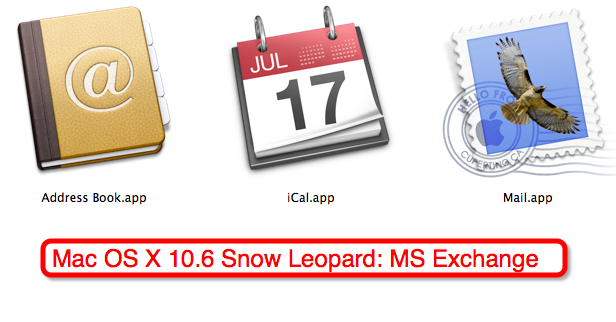
Team Snow Leopard Exchange
Apple’s implementation of MS Exchange 2007 clients in their current Mac OS X 10.6 Snow Leopard is far superior to Microsoft’s own attempt in the form of MS Entourage 2008. If you are an MicroSoft Exchange user and you’ve been considering upgrading to Apple OS X 10.6 Snow Leopard I encourage you to upgrade if the Apple interface and integration of these tools out-weigh the limitations outlined below.

Apple explains MS Exchange support on their web site. What follows is my experience.

I’ve installed OS X 10.6 Snow Leopard on my work Mac Pro for a week now. It was the first victim as it has the ability to hold multiple drives, so I installed OS X 10.6 Snow Leopard on a new RAID 0 array and left OS X 10.5 Leopard on the original drive — which only received Leopard six months ago. I’m writing this post as one my first tasks on my Snow Leopard-afied MacBook.

Exchange support is found in the Snow Leopard versions of:

  • Apple Mail (Mail.app)
  • iCal
  • Address Book

When you create an MS Exchange account in one of these applications it will offer to create an account in the other applications.

Here’s a look at each application with an eye to helping pre-Snow Leopard Entourage users gain insight into if they want to make the jump or not.

Mail.app
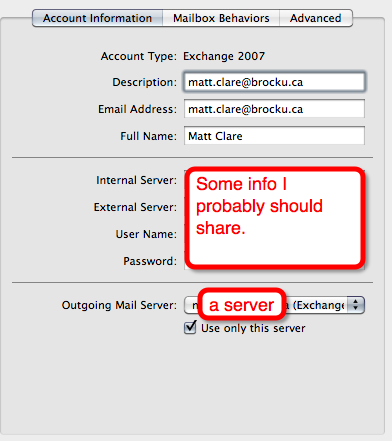
Mail.app Exchange account
Mail’s got the same great features, like sql-lite based search, that kept me from being able to switch to anything else for so long (until Thunderbird got the same quality of search…. but not Exchange.)

Exchange accounts are added via the same “Preferences” > “Accounts” and the + method that was previously associated with IMAP and (shudder…) POP accounts.

I was immediately impressed that all I had to enter was my name, work/Brock University E-Mail address and password and it discovered all of the other details including server address and security settings. It was a testament to Mail.app and Brock University’s IT Services staff. I don’t thinking I’m disclosing too much by saying that Brock University’s E-Mail server is not located at the address brocku.ca — there a whole bunch of them. I know that with every IMAP client I’ve used I’ve had to enter the full IMAP server’s address if the full server name was not in my E-Mail addreess — not with Mail.app and Exchange.

Once the account is added of course all of your mail starts being downloaded, folders and all – just the same way Mail.app handled IMAP.

As expected autocomplete for E-MAil address search includes exchange contacts.

Problems or missing of features include:

  1. You can’t open other people’s E-Mail accounts that you are as designate for.
    I know myself and a collage used this to great effect in making colleagues think we never take vacation.
  2. You can’t set your “Out of office status” from within Mail.app.
    The good news here is that you can at least set your “out of office” status from the web access.
  3. Filters are still processed in Mail.app – you can’t delegate them to the server like you can with Outlook web access for Internet Explorer. You couldn’t do this with MS Entourage either, but I suspect many BlackBerry and iPhone owners might have figured out that they can set filters that would keep mail from hitting their mobile inbox by setting them via Outlook web access for Internet Explorer. No changes here.
  4. Lastly, new mail in your Exchange inbox takes some time to arrive. Longer than it takes with an idle IMAP account and longer than it takes new mail to buzz my iPhone in my pocket. In fact Mail.app seems to visibly be churning away with the MS Exchange account.

Mail.app also supports to-do items that are synced to MS Exchange, and then on two your other devices and the web. Entourage couldn’t ever remember to update the server about changes in my to-do items and it appeared as if my iPhone and Entourage were keeping a different list. Any feedback on to-do items and Blackberries and other Exchange enabled devices is welcome in the comments.

Those to-do items are also shared with iCal and can be modified in both locations.

iCal
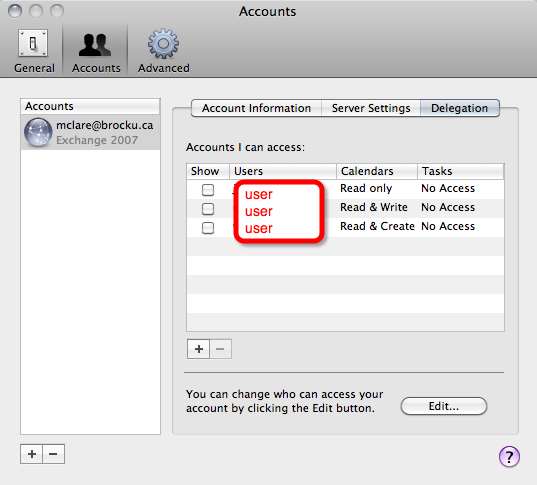
Delegation in iCalAs promised, iCal displays your MS Exchange calendar and syncs everything back and forth, including task/to-dos. Unlike Mail.app, it also displays the calendar information of individuals that you’ve been given access too.

Others can be invited to iCal items/events and when you’re invited a notification appears in the “notifications” are in the bottom left. The iCal icon in the dock even shows the number of un-acknowledged notifications. iCal’s meeting scheduler function may not have a huge advantage over Entourage’s but at least it’s easier to discover. Another advantage over Entourage is the “Done” button at the bottom of items you may be editing – I was far more willing to click it than I am the X at the top right of a new Entourage event.
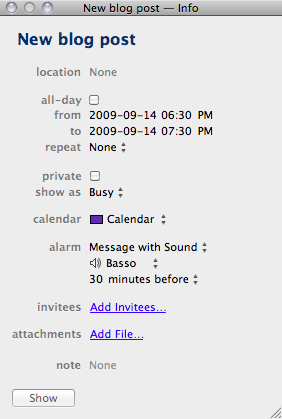
iCal item

Problems or missing of features include:

  1. When I set a location for an event iCal really wants to find that location in the MS Exchange system and if the location is in such-and-such’s office you’ll probably end-up re-inviting such-and-such, not leaving yourself a useful note.
  2. If the location is something iCal can’t find in MS Exchange it indicates it as if you made an error.
    Does it object to me having so many meetings at “the bar”?

The story with iCal is it still has the great interface it always had, it’s still simple to use, and Apple has proved that simplicity doesn’t require a lack of features.

Address Book
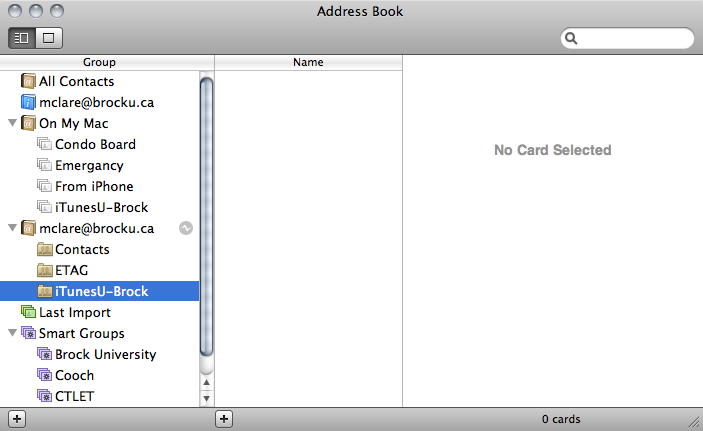
Address Book
The Address Book now has your contactz from MS Exchange, sorry if you were expecting more.

You can also look-up people in your MS Exchange directory.

The downside is like Entourage local contacts are local contacts and MS Exchange contacts are MS Exchange contacts; moving one to the other makes a copy, they can’t be considered the same thing.

Address Book’s interface is simple and straight forward, but I would have liked Apple to have brought a little more to the table. For example, a way to allow MS Exchange to update the information it knows about my contacts while I maintain what I know and the whole local/Exchange barrier was less pronounced.

Address Book is also the only application I’ve had crash of these three since I’ve upgraded (iTunes crashes too). I’d like to compare it to the amount of times Entourage crashed but it’s too soon.


Conclusion

If you launch all three of these applications at the same time they’ll still all be ready to go faster than Entourage! Snow Leopard’s Exchange tools have a clear victory in a race.

Not surprisingly, Snow Leopard’s Exchange tools have a better interface. If you’ve been suffering with the interface and noticeably abstracted access to MS Exchange that Microsoft’s own Entourage client forces Mac users to live with, and you can handle some of the lost features in Mail.app like delegation and “out of office” status, then I’d encourage you to up date but don’t delete Entourage from your computer yet.
Turn off office reminders
If you do upgrade be sure that the last thing you do in Entourage is turn off office reminders. Via the “Entourage” menu and “Turn off office reminders”. If you don’t do that iCal will remind you of an event and then Entourage will.

Lastly if you don’t know what MS Exchange is or don’t use it my advice is wait until a reason comes along for your to upgrade to Mac OS X 10.6 Snow Leopard — it’s not worth it for upgradings sake today.

Wooo — that was a lot of work and I have better things to do this time of the year… let me know if I missed any typos/non-sentaces.

–Update–

Microsoft released an update to Entourage to make it finally use the real web services for Entourage, as opposed to scraping HTML before (I had no idea it was that bad). I’ve used the new Entourage Web Services edition and it’s much more snappier and feels less abstracted from the Exchange server.

You can download Entourage Web Services at http://www.microsoft.com/mac/itpros/entourage-ews.mspx.

You will need to have Microsoft Entourage 2008 installed on your machine already.

No More Not-So-Sticky Felt and Groaning Chairs

Mon Aug 31 21:32:02 2009 EDT (-0400 GMT)

Super SlidexAfter having gone through countless sticky “felt feet” for the chairs in our kitchen I’ve finally found a suitable replacement.

Over a month ago I installed Hickory Hardware’s casters. The ones I went with screwed into the bottom of the chair legs, the idea was that the screw would keep the sliders in place.

Immediately the chairs slide better than they ever had before, but the reason I wrote-up the blog posting is to record that after a month the screws have yet to turn to the dark side and scratch our tiles.

In summary, I’d highly recommend Madico Super Slidex sliding casters for almost any surface — check back in a year to see if I’ve put them on our chairs that live on wood surfaces.

TextExpander

Fri Aug 28 13:39:41 2009 EDT (-0400 GMT)

I’m a big fan of TextExpander. I’ve been using it since before it was purchased by Smile on My Mac Software and was called Textpander.

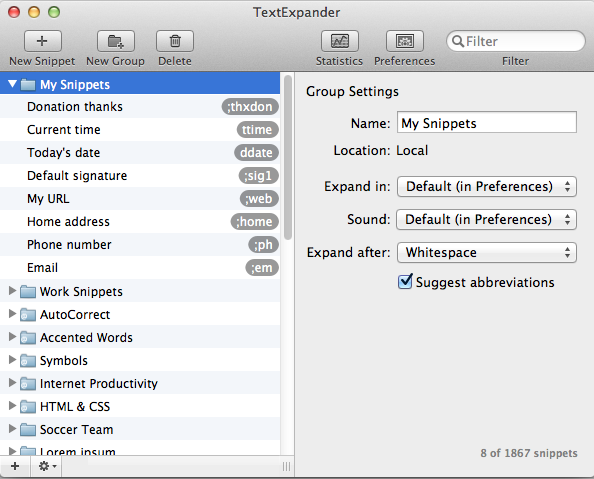
The basic concept is that you can type short key-commands on your Apple, like “ddate” which is automatically replaced with something like Friday; August 28, 2009. In that case saving 18 key-strokes and some thinking, but in other cases it can save thousands of words if you work with a lot boilerplate or things like code samples – another snippet I user a lot is my “hhtml” key-command that inserts a basic HTML web page, including a comment with the date. I also have a “llorem” key-command that gives be a bunch of lorem ipsum paragraphs.

It’s a great way to save time with boilerplate, pre-fill things, or even allow it to auto correct thoes typos that you make all teh time.
screenshot3
I know in my job I get the same question from different people very often and TextExapnder allows me to both offer myself as a contact for questions that range from the obvious to the very complex, but not be worn out by a monotony of remedial questions. TextExapander lets me respond quickly and move on to the real puzzles that I enjoy answering.

I resisted paying for the (previously about ten dollars more, now) $14.98 copy of TextExpander. What convinced me was the ability to subscribe to groups of snippets. I subscribe to Smile on My Mac’s typos group and I’ve also created my own group I maintain here. This keeps my Apple computers in sync, and recently, my iPhone!

The main reason I made this post was to alert you about TextExpander touch, the iPod Touch/iPhone version of TextExapnder. You can use all those same key-commands to compose messages in TextExapnder touch’s compose app and then copy it into your mail message, tweet, Facebook, etc. That’s relatively useful, but what makes it worth the $1.99 is the ability to subscribe to groups. So if you export your groups and post them on the web like I do TextExapnder touch you can take advantage of your full-sized keyboard and pre-compose some of the things you might not want to touch type on your iPod Touch/iPhone.

If you’re interested, here’s an example of TextExapnder at work:


Update Wednesday September 29, 2010: Turns out Phraseexpress at http://www.phraseexpress.com/ can import TextExpander snippets as is.

Building-Up CentOS 5 Linux Operating System

Wed Aug 5 21:57:59 2009 EDT (-0400 GMT)

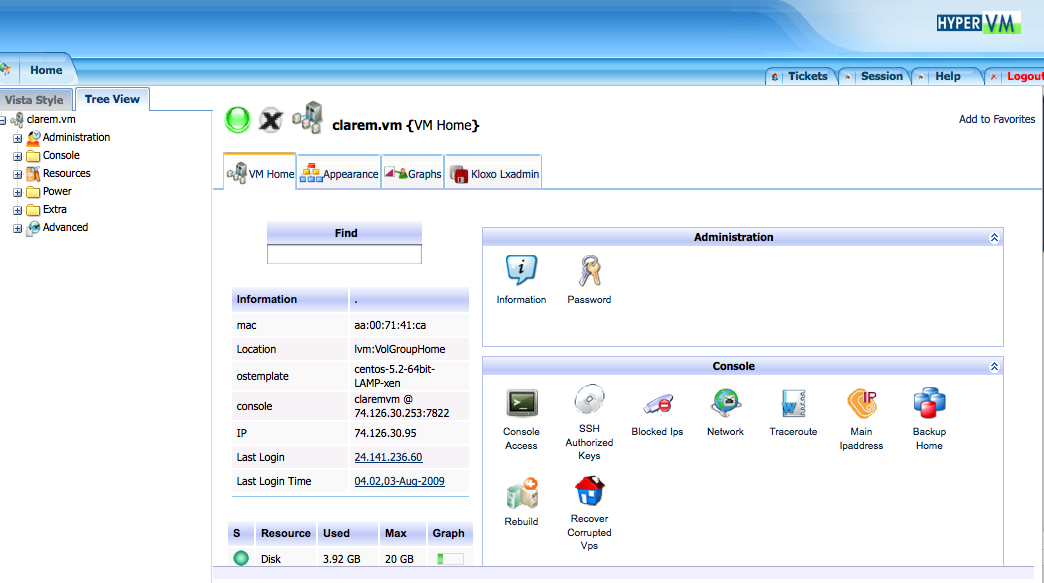
HyperVM admin pageWhen setting up my VPS server there were a number of options for building it. The VPS admin tool gives you “virtual” control over the power switch and the ability to rebuild the server with a fresh OS image at any time. A2 Web Hosting has a few flavours of Linux to choose from: CentOS (the GPL-based rebuild of Red Hat’s Enterprise Server 5), Gentoo and Ubuntu. I went with CentOS as I use it at work, and Enterprise-Grade always seems good to me.

From here on I’ll assume that you know something about the command line, and that you’ve got a good SSH client like the OS X Terminal or Putty and a way to upload files via an SFTP client like Cyberduck or Filezilla.

One my first steps with a pristine Linux operating system is to create a folder called “backup” and an “etc_original” folder in there and copy all of the original etc folder files there for reference.
mkdir /backup
mkdir /backup_original
cp -r /etc/ /backup/etc_original

What you’ll need on your server

Depending on the install/image you use you may have everything you need right there, but here are the packages I install out of the gate:

First off I install the screen tool (more about screen at http://www.cyberciti.biz/tips/how-to-use-screen-command-under-linux.html) so that I can walk away and reconnect to this process, rsync for moving things and backing things up and telnet for testing ports/servers:
yum install screen rsync telnet
Make sure Apache’s installed and that we’ve got all the PHP modules we need:
yum install httpd php php-cli php-zip php-mysql php-mcrypt php-mbstring
Also get some SSL support:
yum install mod_ssl openssl
Install MySQL client and server:
yum install mysql mysql-server
Install the firewall
yum install iptables

Once all of those packages are installed you’ll need to set them up.

Securing SSH and the rest of the server

Here’s a great a guide to securing SSH itself and setting up iptables, so I will deffer to it: http://wiki.centos.org/HowTos/Network/SecuringSSH

Be sure to allow the appropriate ports you’ll need later (http 80, https 443, and your current ssh port because you’d never keep it at 22, right?).

Setting up Apache

For Apache I like to edit the httpd.conf nano -w /etc/httpd/conf/httpd.conf and turn off the following modules by commenting them out with a #:

LoadModule auth_basic_module modules/mod_auth_basic.so
LoadModule auth_digest_module modules/mod_auth_digest.so
LoadModule authn_file_module modules/mod_authn_file.so
LoadModule authn_alias_module modules/mod_authn_alias.so
LoadModule authn_anon_module modules/mod_authn_anon.so
#LoadModule authn_dbm_module modules/mod_authn_dbm.so
LoadModule authn_default_module modules/mod_authn_default.so
LoadModule authz_host_module modules/mod_authz_host.so
LoadModule authz_user_module modules/mod_authz_user.so
LoadModule authz_owner_module modules/mod_authz_owner.so
#LoadModule authz_groupfile_module modules/mod_authz_groupfile.so
#LoadModule authz_dbm_module modules/mod_authz_dbm.so
#LoadModule authz_default_module modules/mod_authz_default.so
#LoadModule ldap_module modules/mod_ldap.so
#LoadModule authnz_ldap_module modules/mod_authnz_ldap.so
#LoadModule include_module modules/mod_include.so
LoadModule log_config_module modules/mod_log_config.so
LoadModule logio_module modules/mod_logio.so
LoadModule env_module modules/mod_env.so
LoadModule ext_filter_module modules/mod_ext_filter.so
LoadModule mime_magic_module modules/mod_mime_magic.so
LoadModule expires_module modules/mod_expires.so
LoadModule deflate_module modules/mod_deflate.so
LoadModule headers_module modules/mod_headers.so
LoadModule usertrack_module modules/mod_usertrack.so
LoadModule setenvif_module modules/mod_setenvif.so
LoadModule env_module modules/mod_env.so
LoadModule ext_filter_module modules/mod_ext_filter.so
LoadModule mime_magic_module modules/mod_mime_magic.so
LoadModule expires_module modules/mod_expires.so
LoadModule deflate_module modules/mod_deflate.so
LoadModule headers_module modules/mod_headers.so
LoadModule usertrack_module modules/mod_usertrack.so
LoadModule setenvif_module modules/mod_setenvif.so
LoadModule mime_module modules/mod_mime.so
#LoadModule dav_module modules/mod_dav.so
#LoadModule status_module modules/mod_status.so
LoadModule autoindex_module modules/mod_autoindex.so
#LoadModule info_module modules/mod_info.so
#LoadModule dav_fs_module modules/mod_dav_fs.so
LoadModule vhost_alias_module modules/mod_vhost_alias.so
LoadModule negotiation_module modules/mod_negotiation.so
LoadModule dir_module modules/mod_dir.so
LoadModule actions_module modules/mod_actions.so
LoadModule speling_module modules/mod_speling.so
LoadModule userdir_module modules/mod_userdir.so
LoadModule alias_module modules/mod_alias.so
LoadModule rewrite_module modules/mod_rewrite.so
#LoadModule proxy_module modules/mod_proxy.so
#LoadModule proxy_balancer_module modules/mod_proxy_balancer.so
#LoadModule proxy_ftp_module modules/mod_proxy_ftp.so
#LoadModule proxy_http_module modules/mod_proxy_http.so
#LoadModule proxy_connect_module modules/mod_proxy_connect.so
LoadModule cache_module modules/mod_cache.so
LoadModule suexec_module modules/mod_suexec.so
LoadModule disk_cache_module modules/mod_disk_cache.so
LoadModule file_cache_module modules/mod_file_cache.so
LoadModule mem_cache_module modules/mod_mem_cache.so
LoadModule cgi_module modules/mod_cgi.so

Other than a few tweaks like commenting out the cgi-bin there isn’t much else I do to the httpd.conf. You may also need to remove the /etc/httpd/conf.d/proxy_ajp.conf file.

What I like to do for the rest of my Apache configurations is create a file with a name/location like “/etc/httpd/conf.d/current_server_name.conf”. This is where I put the rest of my modifications. This file will get loaded and applied when Apache starts and is protected from updates etc by being placed in the conf.d folder.

Some examples of configurations I often add are:
DirectoryIndex index.rss index.php index.html

# THINGS TO CHANGE WHEN THE SERVER GETS SLOW (switch 'em)
# Buffering logs - Not good for dev, very good for production
BufferedLogs On
HostnameLookups Off

When you’re ready start apache:
/etc/init.d/httpd start

and to make sure it always starts with the server:
/sbin/chkconfig --add httpd

Turbo Charge PHP

I’m a big fan of the APC PHP Pre-Compiler/Accelerator. It works by caching the text-based PHP file’s compiled opcode and runs that until the original file is modified. This greatly speeds up the process of PHP files and speeds up larger PHP-based applications with a lot of files, like WordPress. You can even tell APC to not even check the drive for updates, just served the cached page, until the server is restarted or the cached cleared. I also like the persistent shared memory it can introduce to PHP.

It requires the developer tools to be installed:
install gcc make mlocate autoconf

Then I’d recommend install APC based on this guide: http://2bits.com/articles/installing-php-apc-gnulinux-centos-5.html

For the record, here’s what my “/etc/php.d/apc.ini” file currently looks like. I’ve assigned 48mb of ram, and I’m telling APC not to check the disk for updates, just serve the cached page:
extension="apc.so"
apc.enabled = 1
apc.shm_size = 48
apc.ttl = 7200
apc.user_ttl = 7200
apc.optimization = 1
apc.stat=0

MySQL

Start MySQL:
/etc/init.d/mysql start

and to make sure it always starts with the server:
/sbin/chkconfig --add mysql

You’ll have to set a root password for MySQL:
mysqladmin -u root password yourrootsqlpassword

and then proceed to add whatever accounts and database you’d like to add however you’d like to do that. In my case I download PHPMyAdmin and configuring it. What I also do is add to my own Apache config file some IP restrictions like this (with some example IPs):

<Location "/phpmyadmin">
Order deny,allow
deny from ALL
Allow from 127.0.0.1
Allow from 192.168.
# Force clients from the Internet to use HTTPS
RewriteEngine on
RewriteCond %{SERVER_PORT} ^80$
RewriteRule ^phpmyadmin/*$ https://%{SERVER_NAME}%{REQUEST_URI} [R,L]
</Location>

That’s the really geeky part covered, next I’ll look at the more interesting element: Setting-up Google Apps including Gmail for the whole system’s mail.

Setting up a server

Tue Aug 4 20:20:34 2009 EDT (-0400 GMT)

Since I just went through the process of setting-up my own self-managed VPS (virtual private server) system I figured I’d share my experience in the hopes that it will help someone else with some basic command-line comfort looking to gain control of their web hosting or being the process of scaling up.

This is the start of what I hope will be a brief series of blog posts describing the process.

I went with a VPS system because of the considerable cost savings over a full dedicated system and the ability to scale-up from a low-power system to a high-powered system. In fact, I did just that when I initially opted for the 128mb system, but found that I need 256mb. My VPS (and previously shared host) is A2 Web Hosting and they’ve been pretty good to work with.

Here’s what mattclare.ca is currently running, I’ll go through each elements and how I’ve configured them:

  • CentOS 5 Linux Operating System

    Including:

  • Google/Gmail for mail (and calendaring, etc.)
  • JungleDisk/Amazon Webservers for backup